Wallet Management
Select, create, import, archive, and use wallets in Yodao.
Trading wallets are available on Portfolio. Select Wallets above the summary to open the list. Before submitting a trade, check which wallet is selected in the trading panel; Execution explains the buy and sell controls.
Wallet list
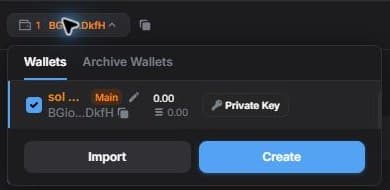
Each wallet shows a name, shortened public address, and balance. The checkbox on the left selects a wallet; Main marks the primary one. You can copy a public address or select the pencil to edit a wallet name.
Import and Create appear at the bottom of the list. Create makes a new wallet as soon as you select it. Use Import to add an existing wallet and follow Yodao's on-screen prompts.
Archive and private key
Archive removes a wallet from the active list. Archived wallets are available under Archive Wallets. The primary wallet does not have an Archive action.
Private Key opens access to sensitive information for that wallet. See Export Private Key for the steps and precautions. Use the separate public-address copy action when you need an address for receiving assets.
Deposit and withdraw
Deposit and Withdraw are available on Portfolio and in the account menu. Follow Deposit to receive SOL or Withdraw to send an asset to another Solana address.
For a view of your wallet and token results, open Portfolio or the Position guide. Wallet Tracker follows wallets of interest and is documented separately.