Wallet Tracker
Follow wallet trades, organize tracked traders, and monitor their token activity.
Wallet Tracker helps you follow wallets: see which tokens they buy, when they add to a position, and when they sell. Add traders you want to watch, organize them into groups, and see their activity in one place.
You can use the tracker on its full page or open it as a panel from the terminal's footer. The panel keeps wallet activity in view while you explore tokens elsewhere in Yodao.
Open Wallet Tracker
- Select Wallet Tracker in the top navigation to open the full page.
- Select Wallet Tracker in the footer to open a panel beside your current page.
The number beside Wallet Tracker shows how many wallets you are tracking.
Both views have three tabs:
| Tab | What it is for |
|---|---|
| Manager | Manage wallets, review statistics, and configure notifications. |
| Trades | Follow buys and sells by tracked wallets. |
| Monitor | See tokens traded by those wallets and each wallet's displayed results. |
Wallet groups
The group list is on the left. All combines your tracked wallets; KOL is a group of known traders. A count appears beside each group.
Select a group to view its wallets and activity. Use Add Group to create a group of your own, such as whales or traders focused on fresh launches.
The button in the upper-left corner hides or shows the group sidebar. On the full page, Manager and Trades also have a group selector.
Manager: wallets and statistics
Manager lists wallets alongside their statistics and tracking settings. Use it to review a trader before following every trade they make.
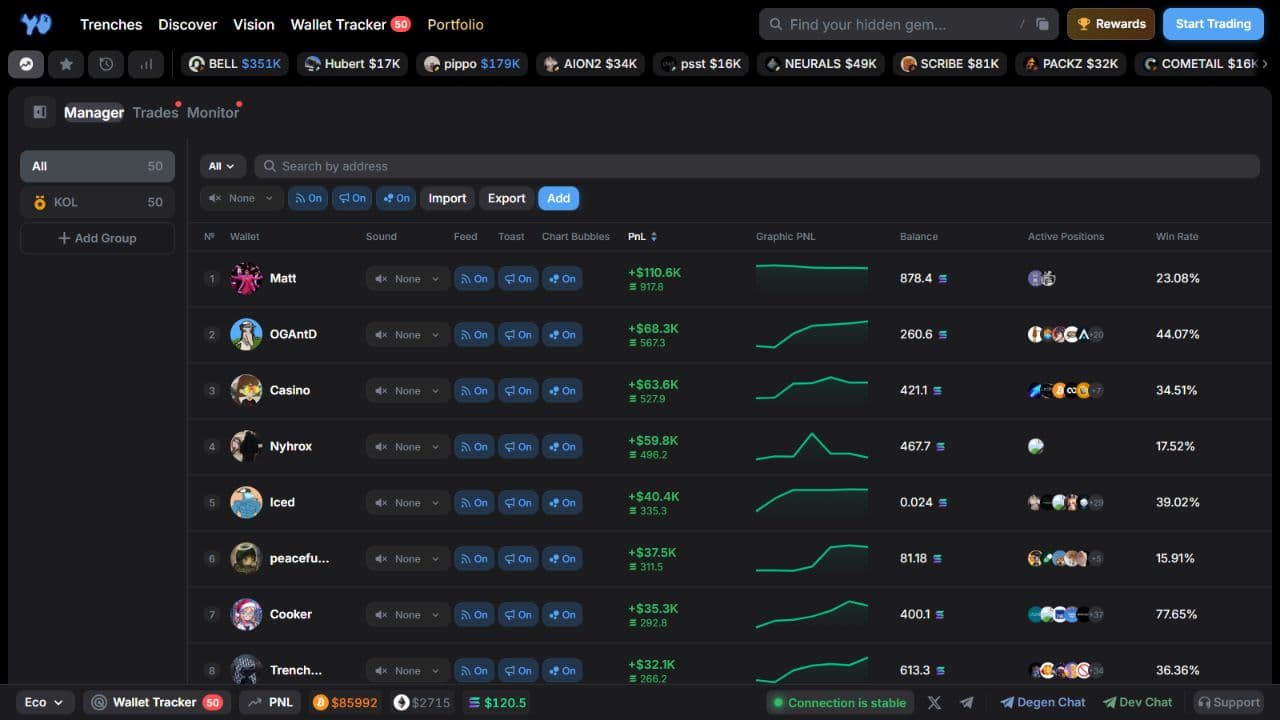
Manage your list
- Search by address — find a wallet in the list by its address.
- Add — add a wallet to tracking.
- Import — import a wallet list.
- Export — export a wallet list.
- Pencil icon beside a name — rename a wallet.
- Delete Wallet — remove a wallet.
Sign in to Yodao to add wallets or create your own groups.
Wallet metrics
| Metric | What it shows |
|---|---|
| Wallet | Wallet name and avatar. |
| PnL | Trading result in US dollars and SOL. |
| Graphic PNL | Chart of the trading result over time. |
| Balance | SOL balance in the wallet. |
| Active Positions | Tokens in active positions. |
| Win Rate | Wallet's displayed success rate as a percentage. |
| Positions | Number of positions. |
| Trades | Number of trades. |
| Volume | Trading volume. |
| Avg Hold | Average time a position is held. |
Scroll the table horizontally if some columns are out of view.
Select a wallet name to open its details. There you can switch between 24h, 7d, and 30d, view its PnL chart, active positions, history, and other sections. You can also copy the address, open it in Solscan, or go to the full wallet page.
Notifications
These controls let you choose which wallet activity you want to see or hear.
| Setting | What it does |
|---|---|
| Sound | Choose a sound for wallet activity. None means no sound; the menu also includes standard and novelty sounds. |
| Feed | Show the wallet's activity in the feed. |
| Toast | Show pop-up notifications about its activity. |
| Chart Bubbles | Show markers for the wallet's trades on a token chart. |
Each wallet row has its own controls. On means that display or notification setting is enabled. Group-wide settings appear above the table.
Trades: the live trade feed
The Trades tab shows buys and sells by tracked wallets, helping you notice a new entry, an added purchase, or an exit.
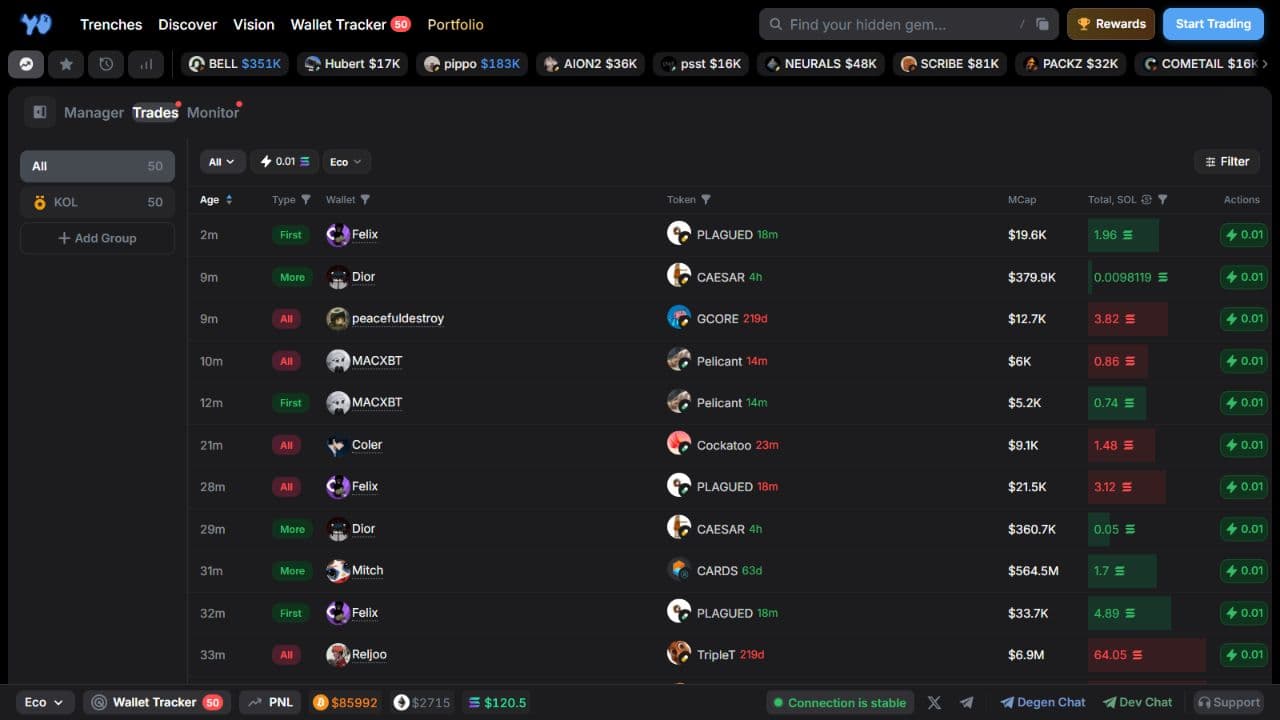
Read a trade row
| Column | What it shows |
|---|---|
| Age | Time since the trade. |
| Type | First buy, additional buy, partial sell, or full sell. |
| Wallet | Wallet that made the trade. |
| Token | Token and its age. |
| MCap | Market capitalization displayed for the trade. |
| Total, SOL / USD | Trade amount in the selected currency. |
| Actions | A Quick Buy button for the token. |
The trade age in Age and the token age beside its ticker are different. A trader may have bought a token a minute ago even if the token launched days earlier.
Trade types
- First / First Buy — the first purchase, opening a position.
- More / Buy More — an additional purchase.
- Partial / Sell Partial — a partial sale.
- All / Sell All — a sale of the entire position.
Buys appear in green and sells in red. All in the Type column means a full exit; All in the group list means all tracked wallets.
Select a trade row to open the token. Select a wallet name to open that wallet's statistics.
Filters and sorting
Select Filter to open Live Trades Filters:
| Filter | What you can select |
|---|---|
| DEX | Launch platform or trading-pool type. |
| Quote Tokens | Pair currency: SOL, USDC, or USD1. |
| Transaction Types | First Buy, Buy More, Sell Partial, or Sell All. |
| MCap | Minimum and maximum market capitalization. |
| Token Age (mins) | Token age in minutes. |
| Transaction Amount (SOL) | Trade amount in SOL. |
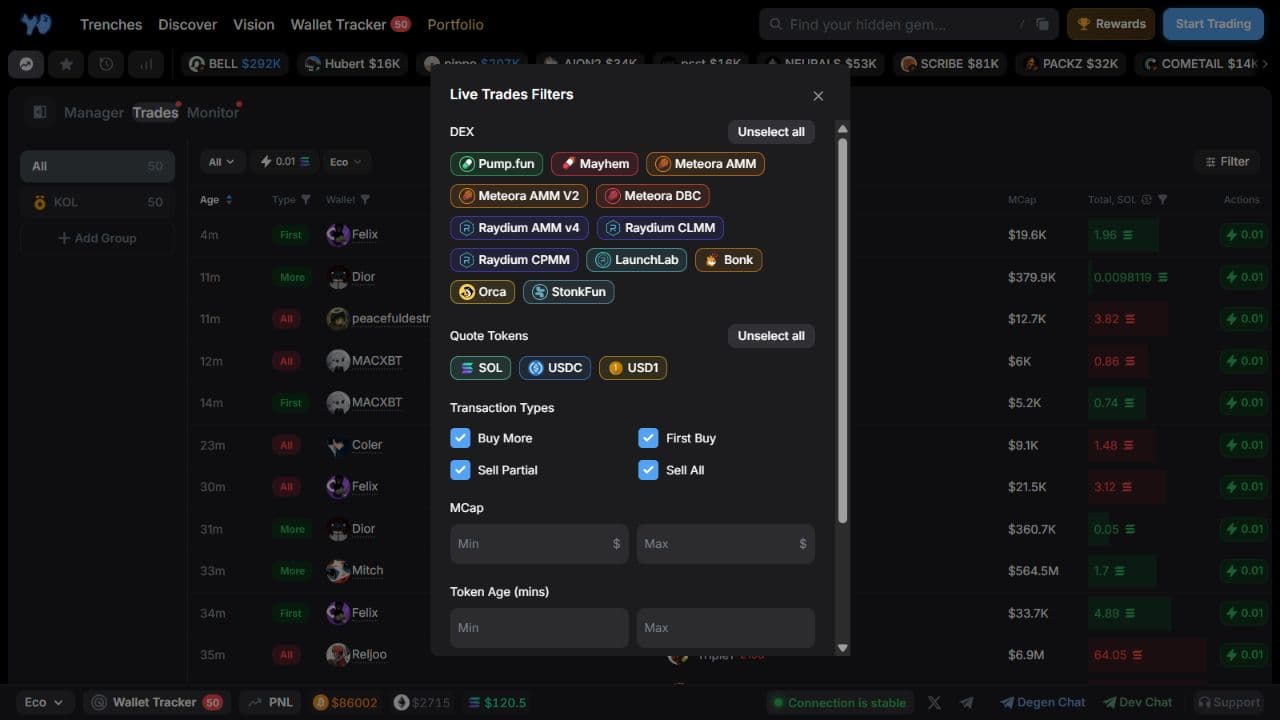
Select Apply after choosing conditions. Reset clears them.
The table headers also have quick filters for trade type, wallet, token, and amount. Wallet accepts a name or address; Token accepts a ticker or contract address. The arrow beside Age changes the sort direction. The currency icon beside Total switches between SOL and USD.
Quick Buy
Set a Quick Buy amount in SOL at the top of Trades. For example, 0.01 SOL is the purchase amount used by the lightning button. A trading-preset selector, such as Eco, sits beside it.
The Actions button lets you buy the token directly from the feed using your selected amount and settings. The other trader's amount in Total is a separate figure. See Execution for trade controls.
Monitor: wallets trading the same token
Monitor groups wallet activity by token. If several tracked traders are active in the same token, you can review their actions together on one card.
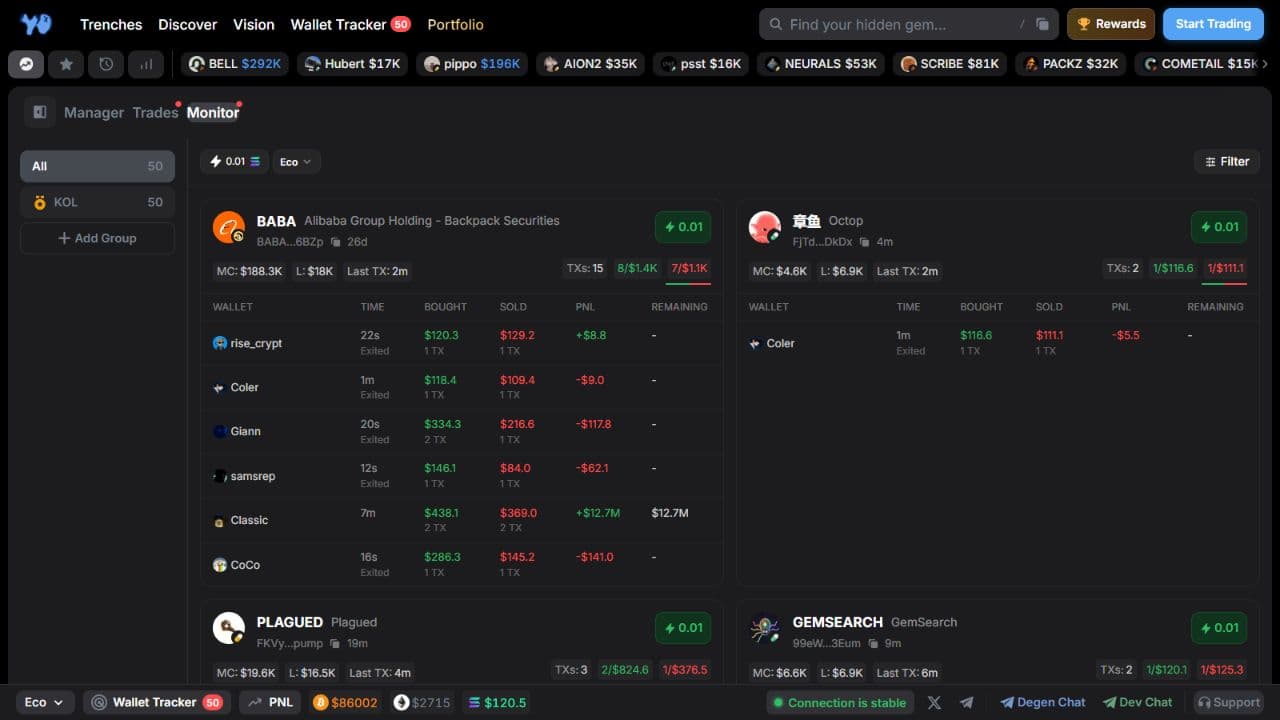
At the top of a card are the ticker, name, contract address with a copy button, token age, and Quick Buy. Below them are:
- MC — token market capitalization.
- L — liquidity.
- Last TX — time since the last displayed transaction.
- TXs — number of transactions shown on the card.
- Green and red figures — number and volume of buys and sells.
A table below lists participating wallets:
| Column | What it shows |
|---|---|
| Wallet | Wallet that traded the token. |
| Bought | Buy volume and transaction count. |
| Sold | Sell volume and transaction count. |
| PNL | Position result displayed by Yodao. |
| Remaining | Displayed value of the remaining position. |
Exited means that the wallet has left its position. Use the card to see who still holds the token and who has sold.
Monitor filters
Select Filter to open Monitor Filters. You can choose DEX, Quote Tokens, and a Last Transaction limit in minutes.
Other conditions are grouped in two sections:
- Market — token age, market capitalization, liquidity, and holder count.
- Transactions — transaction count, buy volume (Inflow Volume), and sell volume (Outflow Volume) in SOL.
Range conditions have Min and Max fields. Apply uses the conditions; Reset clears them.
As in Trades, the Quick Buy amount and trading preset appear above the cards.
Wallet Tracker panel on any page
Select Wallet Tracker in the terminal footer to open a panel without leaving your current page. You can, for example, follow selected wallets while browsing Trenches.
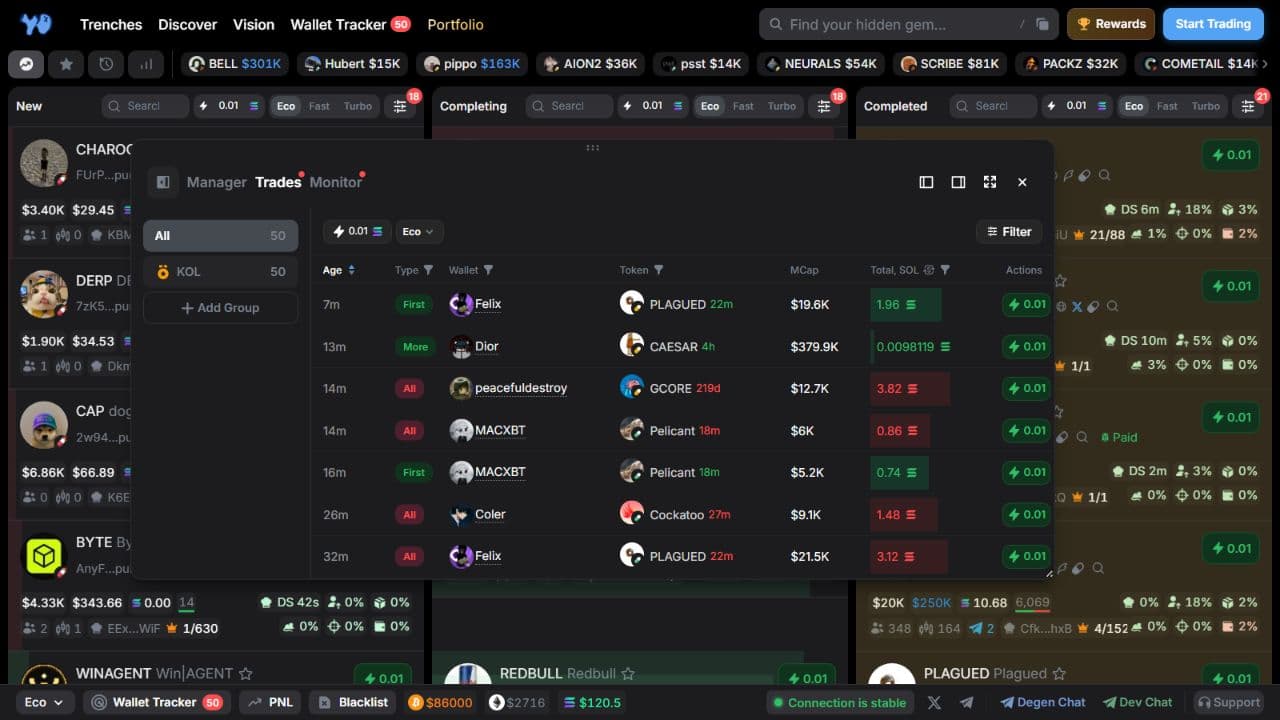
The panel has the same Manager, Trades, and Monitor tabs, wallet groups, and filters. Trades and Monitor also include Quick Buy.
Use the buttons in the upper-right corner to place the panel:
| Button | What it does |
|---|---|
| Dock left | Dock the tracker on the left of the main page. |
| Dock right | Dock it on the right. |
| Undock (floating) | Turn a docked panel into a floating window over the page. |
| Open full page | Open the separate Wallet Tracker page. |
| X | Close the panel. |
Drag the handle with dots at the top to move the floating window, or use its lower-right corner to resize it. Hide the group sidebar to give the feed more room.
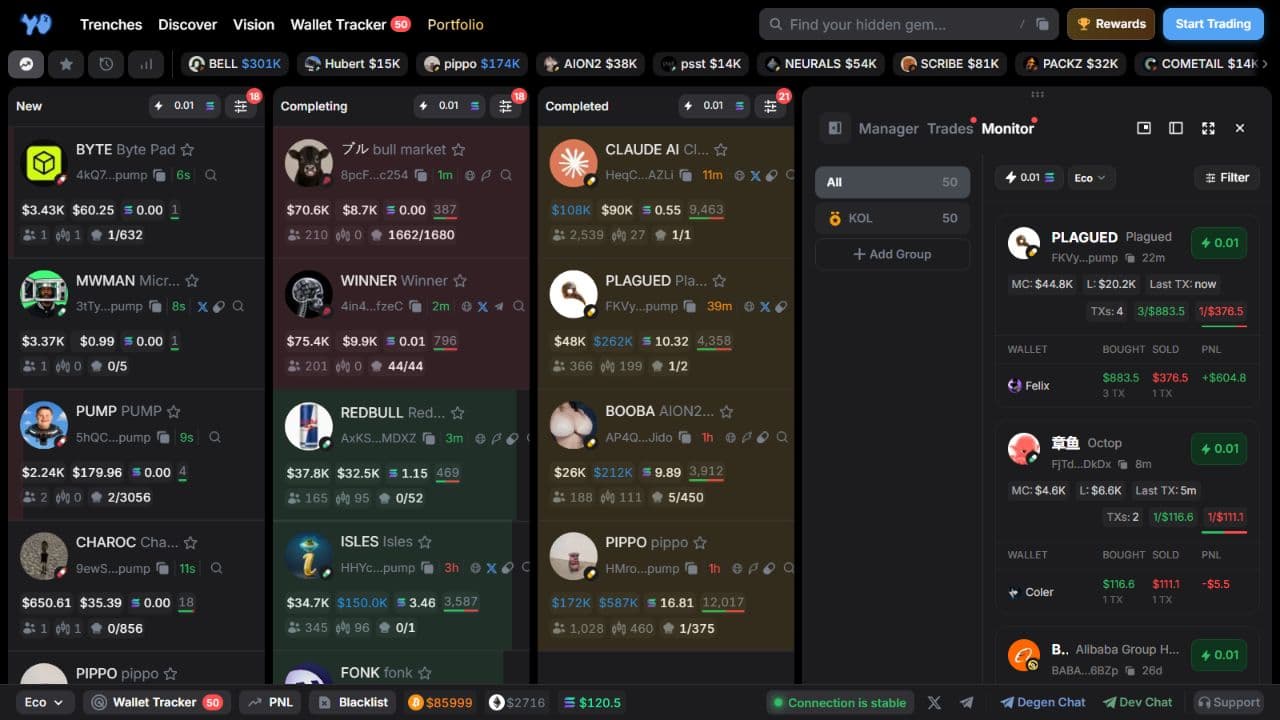
The full page gives you more room to manage wallets and compare statistics. While trading, you can keep Trades or Monitor docked beside the page to watch tracked-wallet activity.