Market, Limit & Instant Buy / Sell
Market trading, the Limit tab, Instant Trade, and execution settings.
The trading panel sits to the right of a token chart. It offers market trades, limit orders, and Instant Trade quick actions. For target levels and order tracking, see Limit Orders. Select the wallet you want to use before trading; Wallet Management explains the wallet selector.
Trading panel
The trading panel is on the right. Use Buy to purchase and Sell to sell. The wallet button opens the wallet selector for the trade.
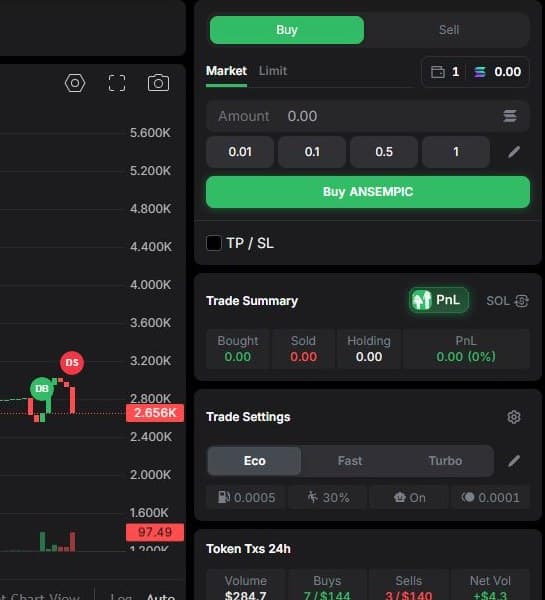
Market
Market places a buy or sell order at the current market.
To buy, enter an amount in SOL in Amount or use one of the preset amount buttons. Select the pencil icon to change those preset amounts.
To sell, enter a token amount or choose a share of your position. Quick buttons offer 25%, 50%, 75%, and 100%. If the selected wallets do not hold the token, the sell controls may be unavailable.
Buy [token] and Sell [token] submit the trade with your selected settings.
Limit
The Limit tab lets you set a target level for entry or exit. See Limit Orders for the settings and order list.
Instant Trade
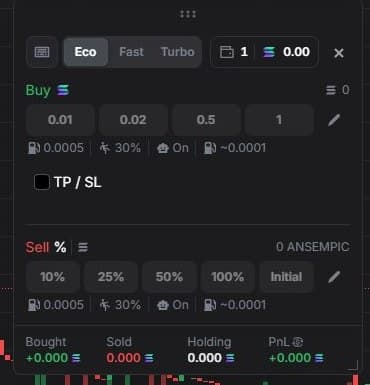
Instant Trade above the tables opens a compact floating trading window. It offers quick buys using preset amounts, sells by position percentage, wallet selection, and Eco/Fast/Turbo presets.
It also includes TP/SL, a position summary, and Enable hotkeys for keyboard shortcuts. The window is resizable. Set the amounts and preset before using a quick-trade button to submit a buy or sell.
Trade Settings
These settings control how a trade is submitted. Choose an Eco, Fast, or Turbo preset, or expand the section for separate Buy Settings and Sell Settings.
| Setting | Meaning |
|---|---|
| Priority Fee | An extra fee for transaction-processing priority. It can improve the chance of faster processing. |
| Slippage | The allowed difference, as a percentage, between the expected and execution prices. |
| MEV Mode | A mode intended to protect against MEV attacks, including sandwich attacks. It does not guarantee execution or complete protection. |
| Jito Fee | An additional fee for submitting a transaction through Jito. In Yodao, this setting is used when MEV Mode is enabled. |
Presets let you switch quickly between your saved groups of settings. Check the actual fees and slippage in the preset before submitting a trade.
Quick Buy is also available from Trenches, Discovery, and Wallet Tracker. Check the amount and preset before submitting a trade.