Trenches
Find Solana tokens across three stages, filter the feed, and use Quick Buy.
Trenches is Yodao's feed for discovering new tokens on Solana. From one screen, you can find new tokens, watch tokens approaching the end of their bonding curve, and explore tokens after migration. Search, filters, and key metrics help you narrow down tokens for further research, while Quick Buy lets you start a purchase directly from the feed.
Open Trenches in Yodao.
Three columns
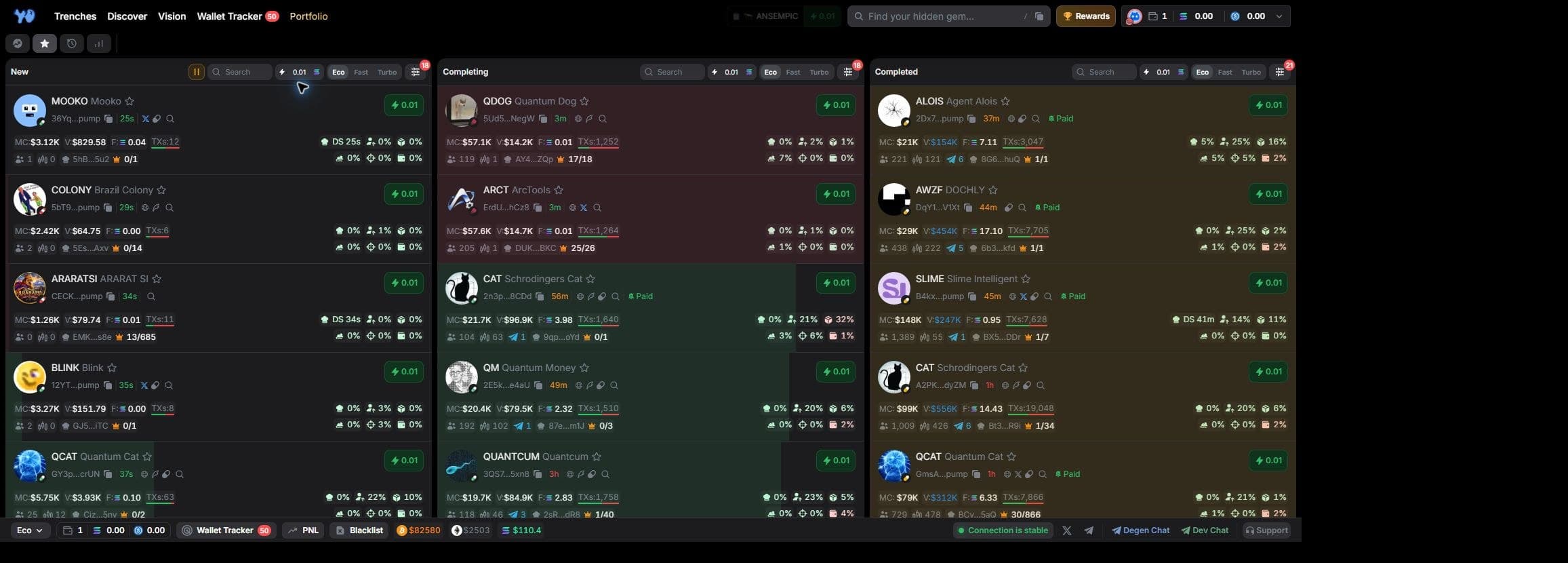
New
New tokens. Use this column to follow the latest launches.
Completing
Tokens nearing the end of their bonding curve before migration. This column helps you watch launches approaching the next stage of trading. The more green fill you see on a token card, the closer the token is to migration.
A bonding curve is a mechanism that changes a token's price as people buy and sell it on a launch platform. Once the platform's conditions are met, the token migrates to a liquidity pool, such as Raydium or PUMP AMM.
Completed
Tokens that have migrated. Use this column to follow trading activity after they move to a liquidity pool.
Each column has its own Search field, Quick Buy amount, trading-preset selector, and Filter button. You can use different selection criteria and buying settings for each stage.
Token cards
Each card brings together token information and trading activity:
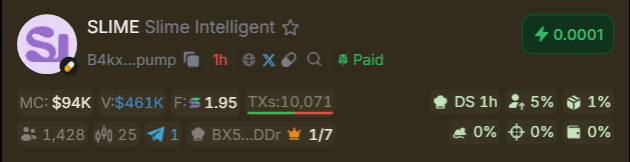
- Token image, ticker, and name.
- Shortened contract address with a copy button, and the token's age.
- Links to related resources, such as X and a website, when available.
- MC for market capitalization, V for trading volume, F for fees paid in SOL, and TXs for transaction count.
- Holder, pro-trader, and Telegram-mention indicators, plus information about the developer and their launches.
- Token holdings attributed to the developer, top holders, and specific wallet categories.
Select a card to open the token page with its chart, detailed data, and trading form. Select the star to add a token to your watchlist.
Quick Buy
The lightning button on a token card is for quick purchases. It displays the amount set at the top of that column.
To prepare a Quick Buy:
- Set the purchase amount in SOL in the column header.
- Choose a trading preset: Eco, Fast, or Turbo.
- Select the lightning button on the card of the token you want to buy.
Presets group trade-execution settings. The Trade Settings window includes Priority Fee, Slippage, MEV Mode, and Jito Fee, as well as separate Buy Settings and Sell Settings tabs. Open it from the current-preset button in the terminal's bottom bar. See Execution for the trading panel and other quick-trade controls.
Filters
Select Filter, the sliders icon on the right side of a column header. In the Filters window, switch between New, Completing, and Completed to set conditions for each column separately.
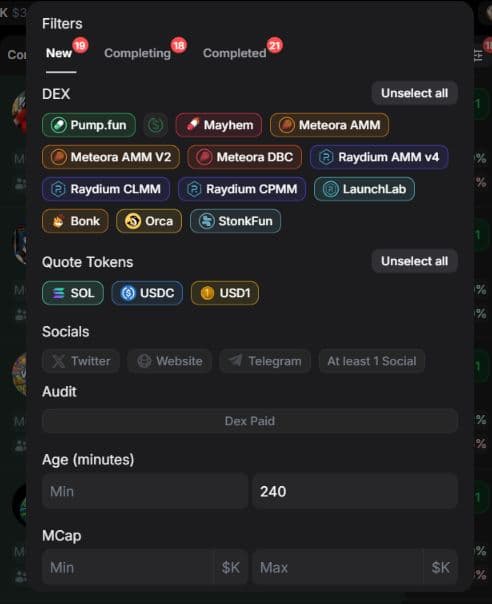
Platforms, trading pairs, and social links
| Filter | Description |
|---|---|
| DEX | Choose launch platforms and pool types. Available choices depend on the column. The interface includes Pump.fun, Mayhem, Meteora AMM, Meteora AMM V2, Meteora DBC, Raydium AMM v4, Raydium CLMM, Raydium CPMM, LaunchLab, Bonk, Orca, and StonkFun. |
| Cashback tokens only | Show cashback tokens using the additional switch next to Pump.fun. |
| Quote Tokens | Choose the trading pair's quote token: SOL, USDC, or USD1. |
| Require an X / Twitter link. | |
| Website | Require a website link. |
| Telegram | Require a Telegram link. |
| At least 1 Social | Require at least one social link. |
| Dex Paid | Show tokens marked Dex Paid. |
Numeric filters
Numeric filters have Min and Max fields for the lower and upper bounds of a range. Units appear beside the fields.
| Filter | Description |
|---|---|
| Age (minutes) | Token age in minutes. |
| MCap | Market capitalization in thousands of US dollars. For example, 50 in a field marked $K means $50,000. |
| Liquidity | Liquidity in US dollars. |
| Holders | Number of token holders. |
| Volume | Trading volume in US dollars. |
| Fees Paid | Fees paid in SOL. |
| Transactions buys | Number of buy transactions. |
| Transactions sells | Number of sell transactions. |
| Bundle Holding | Share held by bundle wallets, as a percentage. |
| TOP10 Holding | Share held by the ten largest holders, as a percentage. |
| Dev Holding | Developer's share, as a percentage. |
| Fresh Wallets Holding | Share held by fresh wallets, as a percentage. |
| Snipers Holding | Share held by sniper wallets, as a percentage. |
| Insiders Holding | Share held by insider wallets, as a percentage. |
| Pro Trades | Pro-trader indicator for the token, set as a numeric range. |
| TG Calls | Number of token mentions in different Telegram groups. |
| Dev Tokens Migrated | Number of the developer's tokens that have migrated. |
| Dev Tokens Created | Number of tokens created by the developer. |
After changing the conditions, select Apply. The bottom of the window also has Reset and Default controls for clearing or restoring filter settings.
Search and quick access
Each column has a Search field in its header. For a general search across the terminal, use Find your hidden gem… in the top bar or press /. See the Search guide for token and wallet results, filters, and sorting.
A quick-access strip above the columns lets you view trending tokens, your watchlist, recently viewed tokens, and tokens in your positions.
Bottom bar
The terminal's bottom bar keeps useful tools within reach: a wallet tracker, your PnL, a blacklist, major cryptocurrency prices, and connection status.

Wallet Tracker
Wallet Tracker opens a panel of tracked wallets beside Trenches. You can see when a tracked wallet buys a token, adds to a position, or exits without switching to another page. The number beside the button shows how many wallets you track.
You can detach the panel into a floating window, dock it at the side, or open it on a separate page. See the Wallet Tracker guide for groups, alerts, trade feeds, and Monitor.
PnL tracker
PNL opens a widget showing your balance and profit or loss. It displays values in SOL and US dollars, with the result also shown as a percentage. You can keep your PnL in view while looking for tokens.
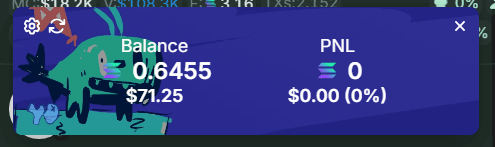
You can resize the widget and change its appearance and currency display in settings. Close it with the X button or select PNL again. The PnL guide covers the token summary and shareable results card.
Blacklist
Blacklist opens a list for excluding unwanted tokens from the feed. You can add token and developer addresses, websites, X profiles, and keywords.
The window has Token, Devs, Website, X.com, and Keyword categories. The All tab shows the full list, and Add creates a new entry.
Major cryptocurrency prices
Current BTC, ETH, and SOL prices in US dollars appear nearby, so you can follow the broader market while exploring new tokens.
Connection status
The indicator on the right shows the terminal's connection status. Data updates may be delayed while the terminal is connecting or reconnecting. Wait for a stable connection before relying on the latest figures.