Limit Orders
Target market cap, TP/SL, and tracking Yodao orders.
A limit order sets a target level for buying or selling. Start on a token page and select Limit to the right of the chart. For market trades and the compact trading window, see Market, Limit & Instant Buy / Sell.
Limit
Limit creates an order with a target level. You can use it to plan an entry or exit at a chosen market capitalization.
Enter the target market capitalization in US dollars in MC. You can also adjust the level with a percentage change from the current market capitalization, a slider, or directly on the chart. The order button displays the token and target you selected.
The video shows how to adjust a limit order directly on the chart.
Track created orders in the Orders tab below the chart.
TP / SL
The TP / SL section lets you set levels for automatic selling:
- TP — Take Profit: a level for taking profit after a price increase.
- SL — Stop Loss: a level for exiting after a price decrease.
- Sell: the share of your position to sell at that level.
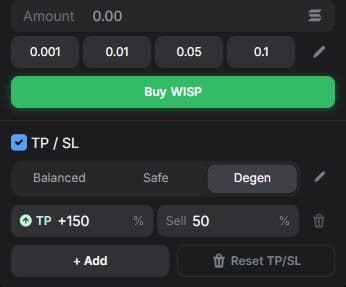
Choose a Balanced, Safe, or Degen preset, then adjust the levels and sell shares. + Add adds a level; Reset TP/SL clears the TP/SL settings.
For example, TP +100% with Sell 50% sets a level to sell half the position after a 100% increase.
Orders
Your orders table shows the token, status, order type, amount, current and target market capitalization, time, and execution settings.
Select Only [token] to show orders for the open token. A status filter, such as Active, helps you focus on a group of orders.