Search
Find tokens and wallets with Yodao's global search, filters, and sorting.
Yodao's search helps you find a token or wallet, review key figures, and open a detailed page. If you already know which token you want, paste its full contract address. If you're still exploring, start with trending tokens and narrow the results with filters.
Open search
Select Find your hidden gem… in the terminal's top bar or press /.
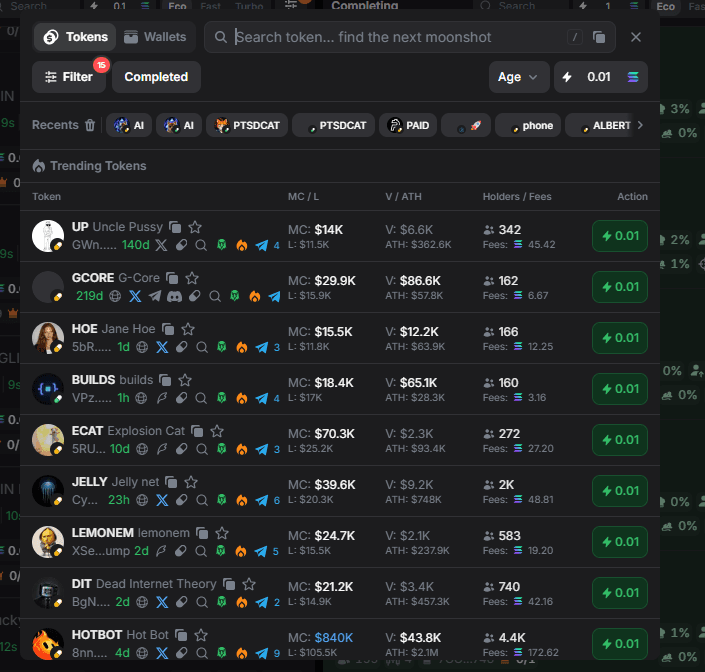
The search window opens over the current page. Switch between Tokens and Wallets at the top. Select the X on the right to close it.
Tokens: find a token
In the Tokens tab, search by token name, ticker, or full contract address.
Start typing in Search token… find the next moonshot to see matching tokens. Select a ticker to open its page. See Token Chart for chart controls, Token Info for metrics, and Execution for trading.
Several tokens can share a name or ticker. A full contract address helps identify the specific token you mean rather than a similarly named copy.
Trending Tokens
When the search field is empty, Trending Tokens shows tokens and their key metrics before you open a chart.
Recents
The Recents strip provides quick access to recently viewed tokens. Select a token to return to it. The trash icon beside the section name is for clearing the list.
Read a token result
Each row combines the token name, ticker, shortened contract address, age, and key figures. Links to the website, X, Telegram, Discord, and launch platform may also appear when available.
| Column | What it shows |
|---|---|
| Token | Image, ticker, name, address, age, and available links. |
| MC / L | MC is current market capitalization; L is liquidity. |
| V / ATH | V is trading volume; ATH is the highest market capitalization reached. |
| Holders / Fees | Number of holders and fees paid in SOL. |
| Action | A Quick Buy button. |
K means thousands and M means millions. For example, $14K is $14,000.
Quick actions
- Copy icon beside the ticker — copy the contract address.
- Star — add the token to your watchlist.
- Social links — open the project's available resources.
- Lightning button with an amount — buy a token directly from the results.
Set the Quick Buy amount at the top of the window, to the right of the sort menu. For example, 0.01 SOL means a purchase amount of 0.01 SOL. The same amount appears on the buttons in the Action column. Execution explains trade settings and other buy and sell controls.
Filters
Use Filter to narrow token results. The number beside it shows how many conditions are selected.
Global search offers these filters:
| Filter | What it does |
|---|---|
| DEX | Select launch platforms or pool types: Pump.fun, Mayhem, Meteora, Raydium, LaunchLab, Bonk, Orca, and StonkFun. Meteora and Raydium have separate pool options. |
| Quote Tokens | Select the trading pair's quote token: SOL, USDC, or USD1. |
| Socials | Require a Twitter, Website, or Telegram link. At least 1 Social requires any one social link. |
Select Apply after changing conditions. Reset clears the filters.
The Completed toggle sits beside Filter. Turn it on to limit results to tokens that have migrated, or turn it off to remove that restriction.
Sort results
The sort menu at the top of the window offers four criteria:
- Age — token age.
- MCap — market capitalization.
- Liquidity — liquidity.
- Volume — trading volume.
Choose the metric you want to sort by. Liquidity, for example, is useful when comparing the size of trading pools.
Wallets: find a wallet
In the Wallets tab, search by wallet name or full address using Find wallet… track the degen.
The KOL and Global modes let you switch between the KOL category and a broader wallet search.
Results show:
| Metric | What it shows |
|---|---|
| Name and address | Wallet name and shortened address. |
| PNL | The wallet's trading result. |
| Graphic PNL | A chart of how the result changed. |
| Active Positions | Available information about open positions. |
| Win Rate | The wallet's success rate as a percentage. |
| Action | An action to track the wallet. Tracked means you are already tracking it. |
Select a wallet name to open its page with detailed statistics and positions. Beside the address, you can copy it or open it in Solscan. Known traders may also have a link to X.
This makes it easier to move from seeing a wallet trade a token to reviewing that wallet's history and results. To follow several wallets in one place, see Wallet Tracker.